Free QR Code Generator for Teachers: Use Cases, Setup, FAQ
There's a moment every teacher recognizes: you've handed out a worksheet, the room goes quiet, and a hand goes up. "What's the URL again?" Then another hand. Then five more. You're spelling out https://www.khanacademy.org/math/cc-fifth-grade-math/... while the rest of the class slows to a crawl waiting for you to be done.
A free QR code generator fixes this in about ten seconds. Students point their phone at a code printed on the handout, tap a notification, and they're on the resource. No app for students, no shortened URL to type, no paid plan, no waiting. This guide walks you through how to do it, what to actually link to, and the small details (size, placement, what counts as "the right" resource) that separate a QR code that gets used from one that gets ignored.
Want to skip ahead? The free QR code generator at whew.cc creates classroom-ready QRs in 30 seconds with no signup. Download as SVG (best for handouts you'll photocopy) or PNG. The rest of this guide explains where to put them, what to link to, and the FAQ teachers ask most.
- Whew.cc Authors
- Updated 9th June 2026 (originally 12th May 2026)
Why a QR code beats a typed URL in class
The math: a typed URL with even one typo costs about 60 seconds of class time per student affected. In a class of 28, that's a sizable hidden tax on every link you share. A QR code's cost is one print job and roughly two seconds per scan. Across a school year, the time saved is real - and it scales especially well in subjects where you assign one link per topic and rotate through 30-40 topics.
Two other things QR codes do that typed URLs don't:
- They survive the photocopier. A QR printed on a master copy keeps working on photocopies of photocopies, as long as the contrast is decent. Hand-typed URLs degrade.
- They work with the school camera roll. A student who's away on a sick day can scan a friend's photo of the handout and still get the link.
What you need (and what you don't)
The whole setup needs four things and no special software:
- A resource to point to. The link can be a Google Doc, a Khan Academy lesson, a YouTube video, a Padlet board, a Quizlet set, a Drive folder - anything with a URL.
- A free QR generator. We use whew.cc; the workflow below is identical for any free tool.
- Your school printer. A handout with a QR in the corner takes the same ink as one without.
- About 90 seconds. That's the total time from "I have a link" to "I have a printed handout with a working QR."
What you don't need: a paid edtech platform, an app for students to install, district approval (the QR is just a hyperlink), or a separate "classroom QR system." A QR code is a hyperlink in print form. Nothing fancier.
How to make a QR code for teachers in 90 seconds (step by step)
- Copy your resource URL. Open the page you want students to land on and copy the address from the browser bar.
- Open whew.cc. Paste the URL into the input box and click Generate QR code.
- Pick Static unless you'll change the link. Static codes work forever and don't depend on any service. Use Dynamic only if you'll be re-pointing the same printed code to different resources over the term (more on this in a moment).
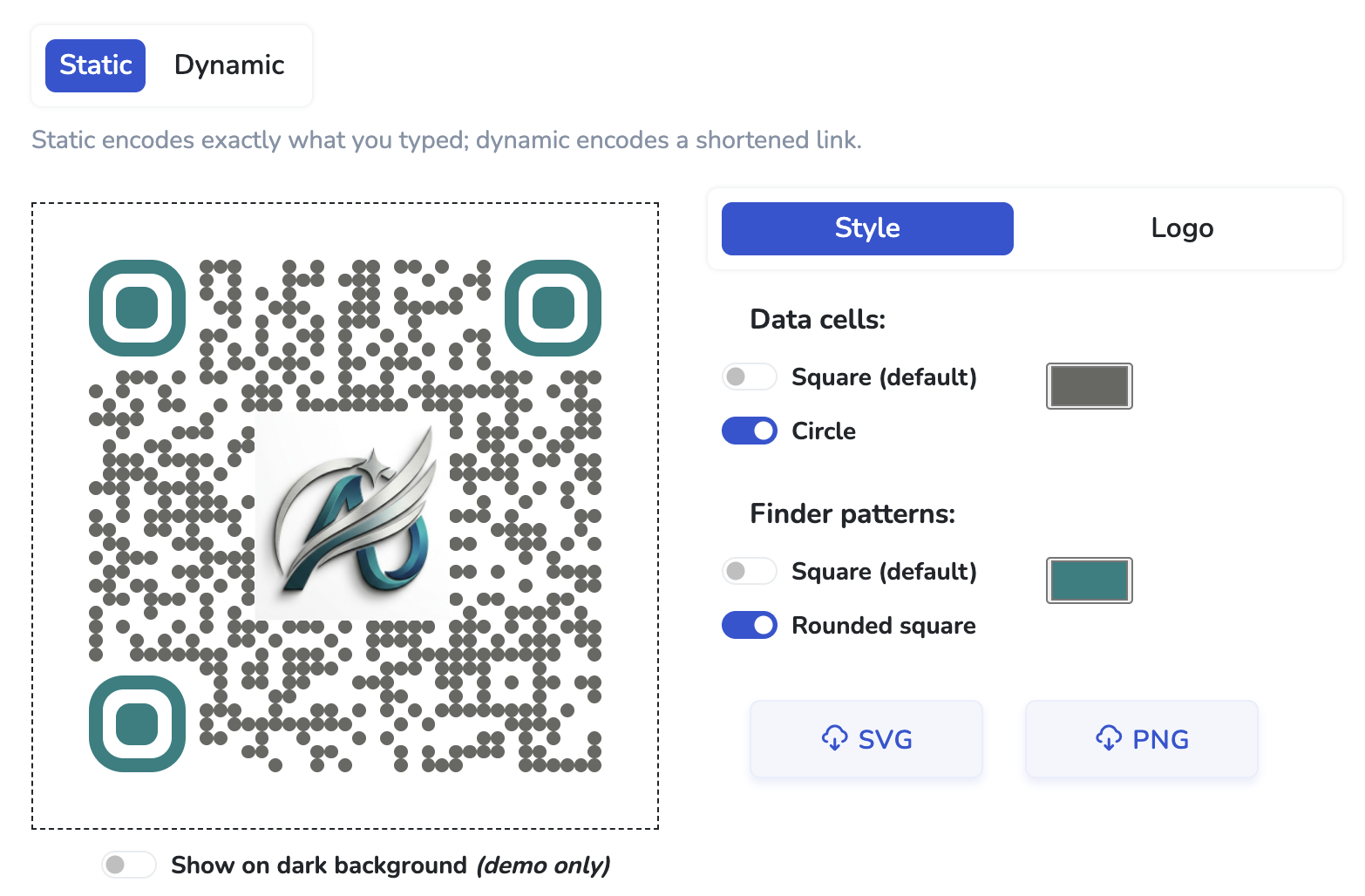
- (Optional) Customize. Add your school colors, round the corners, or drop your school's logo in the center via the Logo tab. We have a full walkthrough in how to add a logo to a QR code.
- Download the SVG. SVG stays sharp at any size, which matters because you'll be sticking this on a Word doc, a Google Slide, a Pages document, or a printed worksheet - all of which scale.
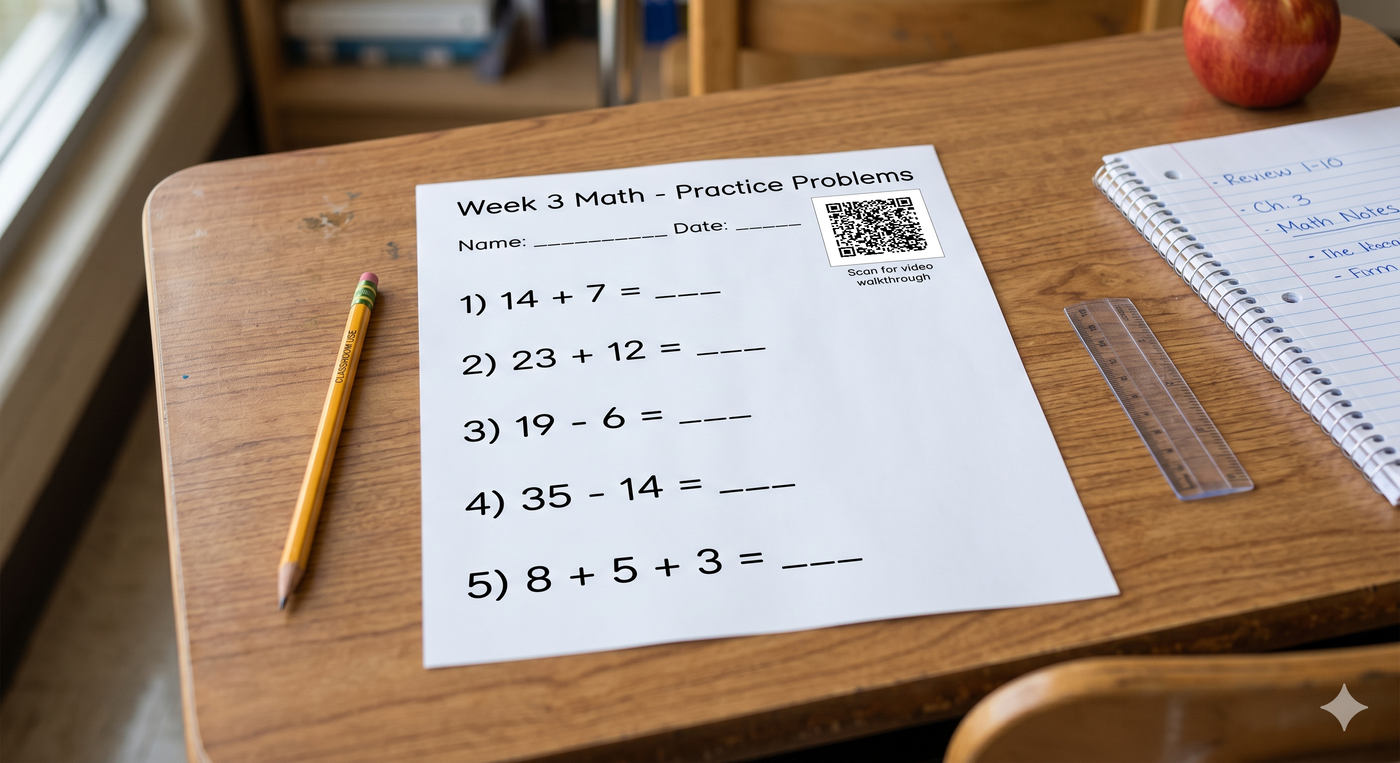
- Drop the QR into your handout. Top-right corner of the page is the conventional spot. About 2 cm (¾ inch) square is enough to scan from across a desk. Add a tiny caption ("Scan for video" or "Scan for homework hints") so students know what's behind it.
That's it. The first time it takes 90 seconds; after a few you'll do it in 30.
Six places to put a QR code in your classroom
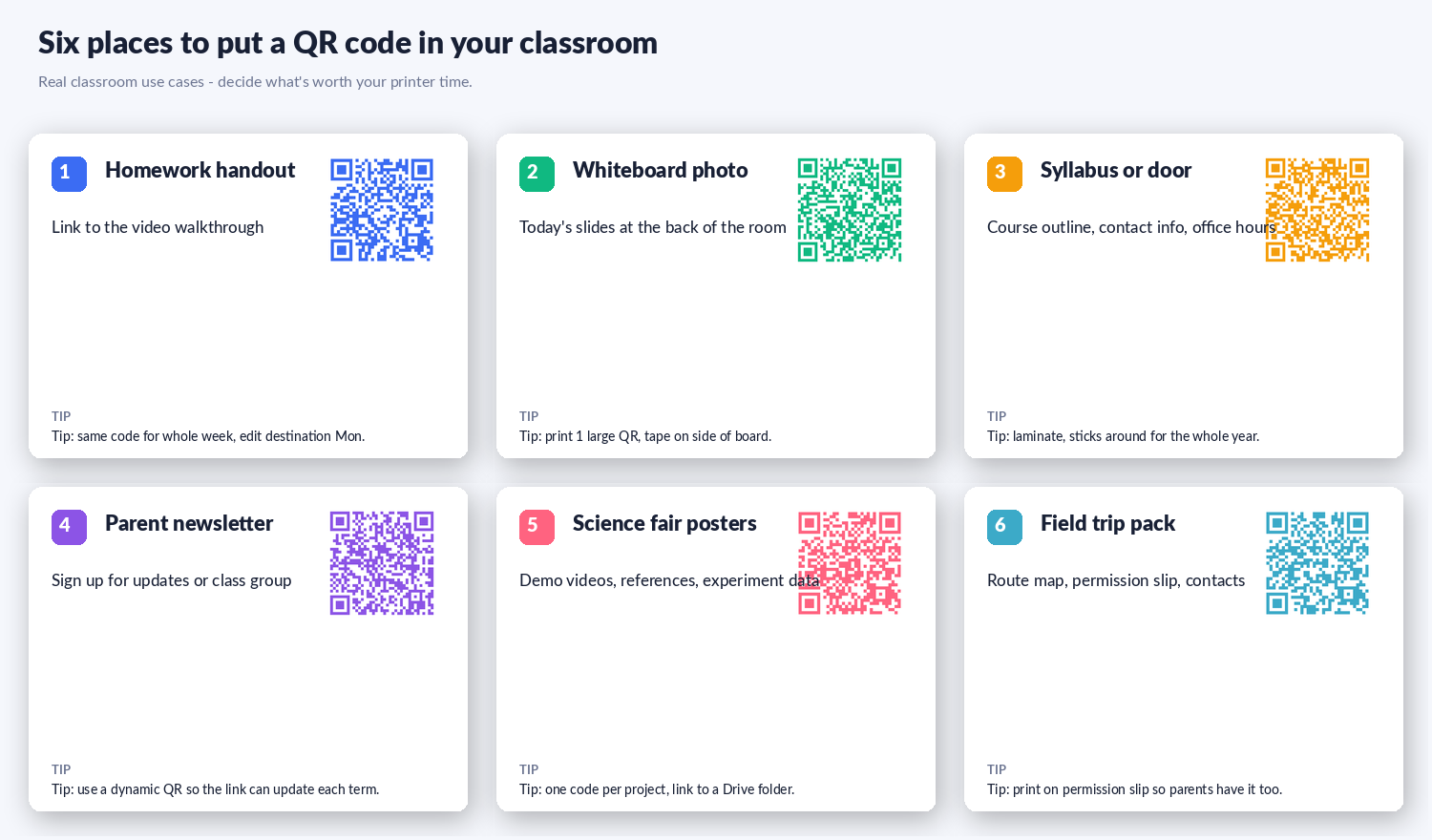
The six places most teachers get genuine use:
- The corner of a homework handout. Link to the video walkthrough you recorded (or the Khan Academy lesson, or the Bozeman Science clip). Students who get stuck can rewatch the explanation that night without messaging you at 9 PM.
- Whiteboard photo. Print today's slide deck as a QR-tagged page on the side of the board so the kids in the back row aren't squinting. Same code for the whole class.
- Syllabus or classroom door. A laminated QR on the door points to your contact info, office hours, and course outline. Parents who come up at parent-teacher night just scan it.
- Parent newsletter. Single QR that links to a sign-up form or a class group (Remind, Google Group, WhatsApp). One scan and a parent is in the loop.
- Science fair posters. One QR per project pointing to supporting video, raw data, or a Drive folder of references. Judges and visitors get the depth without printing 30 pages.
- Field trip pack. A QR on the permission slip linking to the route map, parent contact list, and the rescheduled-trip plan in case of rain. Saves the "did anyone bring the printout?" moment.
Static or dynamic for classroom use
The same question we cover in the restaurant menus guide applies here, with one teacher-specific spin:
- Static is right for evergreen resources. A multiplication table page that never changes, a periodic table reference, a school map. Print once, works forever.
- Dynamic is right for "same code, different content over time." A "this week's homework" QR on the back of every desk that you re-point each Monday. A "today's exit ticket" code on the whiteboard. A "scan to vote in our class poll" code that you reuse for different polls. The QR itself stays the same; the destination changes.
Free anonymous dynamic codes on whew.cc hold for 2 weeks, free-account ones for 90 days, and paid-plan ones don't expire. For a school year of weekly re-pointing, a paid plan (a few dollars a month) is the right call.
Privacy, school networks, and the boring stuff
Two practical things to know before you start putting QRs on student-facing materials:
- QR codes are public. Anyone who sees the printed code can scan it. Don't put a QR on something that links to a private gradebook, a draft answer key, or anything you wouldn't want a parent or another teacher to read. For those, share a link directly with the named students.
- School Wi-Fi filtering. Some district networks block redirect services. If you're using a dynamic QR (which routes through whew.cc's short-link domain first), test it on the school Wi-Fi before printing in bulk. Static QRs encode the destination URL directly and aren't affected by redirect filtering, so they're the safer choice in tightly filtered environments.
A few things to keep handy
- A reusable QR for "today's resource." Use a dynamic QR, print it on a laminated card, edit the destination weekly. One card per subject saves a lot of reprinting.
- A paper-menu fallback. Have a small stack of printed copies of any resource you QR-link to, for the student who left their phone at home or whose battery's dead. The QR is the default, not the replacement.
- A scan test before printing in bulk. The Check Readability button in whew.cc's Logo tab (or just scanning your own preview with your phone) catches the codes that won't scan reliably before the photocopier is involved.