A plain QR code is fine. A QR code with your logo in the middle is dramatically better - it looks intentional, it earns trust, and it gets scanned more often. The slightly counterintuitive thing is that this is a free, ten-second job in 2026, with no account required and no watermark on the result. This guide walks you through the whole flow on whew.cc, including the one detail most tutorials get wrong (logo size), and the readability check that tells you immediately whether your code still scans.
A small note up front, since this is the bit that surprised us when we shipped it: most free tools let you upload a logo and that's it - the logo lands wherever the tool decided to put it, at whatever size the tool decided was right, and you find out whether the code still scans by printing it and trying. Whew.cc lets you move, resize, and stretch the logo on top of the live QR preview, and gives you a one-click readability check that runs a real decode against your composited code. That combination - interactive placement plus an honest scan test before download - is rare in free tools.
It feels like it should, but no. QR codes have built-in error correction: extra redundant data is encoded into the pattern so a partially obscured code can still be reconstructed. The QR specification has four error correction levels (L, M, Q, H) that allow recovery of roughly 7%, 15%, 25%, and 30% of damaged area, respectively. When you add a logo at the center, you're occupying a small portion of the modules. As long as the logo isn't bigger than the error-correction budget, the code still scans cleanly.
The practical rule of thumb: keep your logo at 15–22% of the code's width and use error correction level H. That gives you a comfortable safety margin even on slightly damaged or oddly-printed codes. We'll show you what each size looks like a bit further down.
Here's the whole flow with screenshots. The whole thing takes well under a minute.
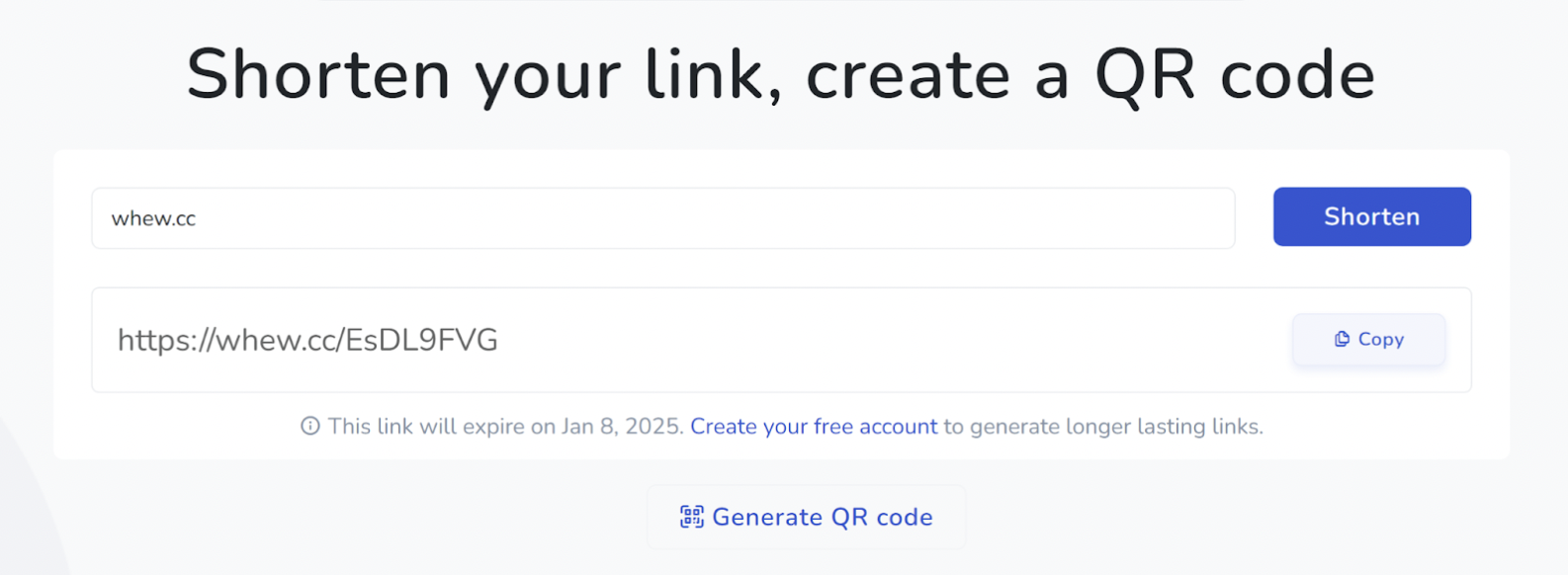
Go to whew.cc. Paste your destination URL into the input box and click "Generate QR code" below it. A modal opens with the live QR preview and customization controls on the right. The default tab is Style, where you can pick data-cell shape, finder-pattern shape, and colors.
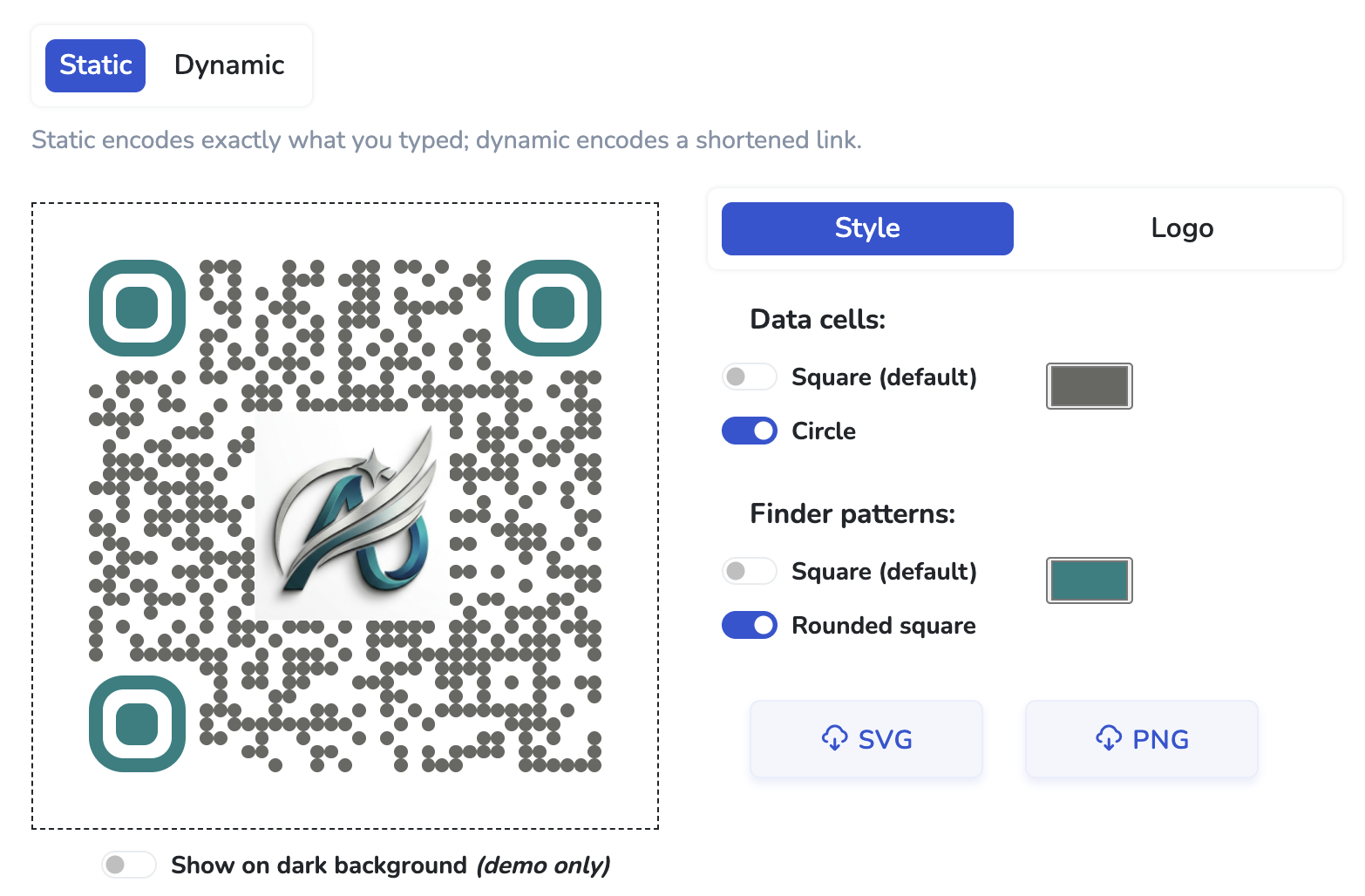
Click the Logo tab next to Style. You'll see an upload control and three action buttons: Undo, Remove, and Check Readability. The little orange notice at the top is just letting you know the feature is in preview - your logo gets baked into the downloaded PNG/SVG, but it isn't permanently stored on whew.cc's side.
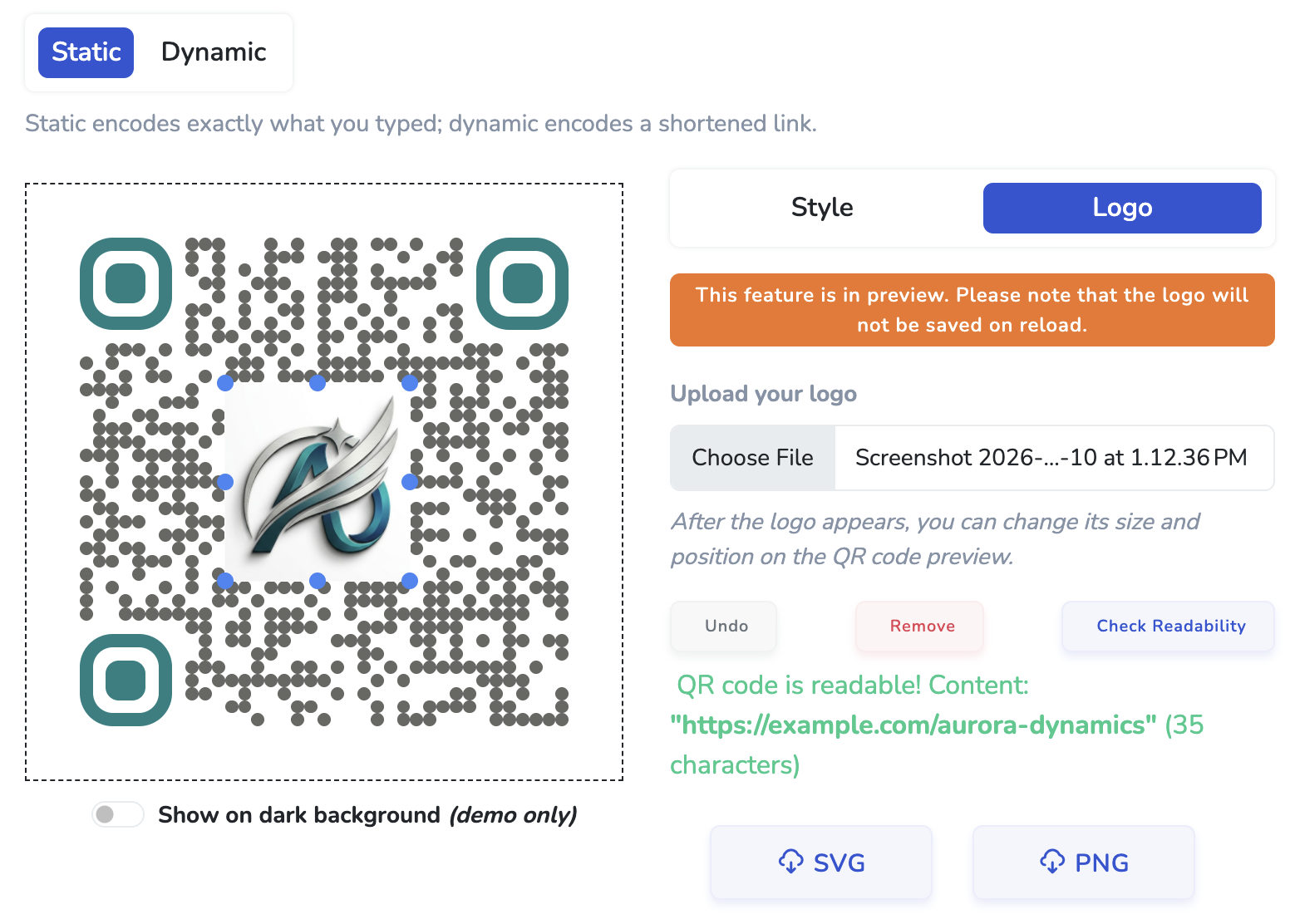
Click Choose File and pick your logo. PNG with a transparent background works best, but SVG and JPG also work. The logo lands at the center of the code at a default size that should scan reliably for most logos.
Two practical tips at this step:
Once the logo is in, you can drag it to reposition, resize it to find the right balance between visibility and scannability, or stretch it (e.g. fit a wide wordmark across the central area). This level of interactive placement is something a lot of free tools skip - they upload, render, done. On QR Code Monkey, for comparison, the logo lands at a fixed size and central position; you can't push it off-center or scale it independently of the code. Whew.cc treats logo placement as a real design step.
Practical guidance: centered is the safe default - it sits inside the natural empty space at the middle of most QR layouts. Off-center placements are fine if your design calls for it, but stay away from the three large corner squares (the "finder patterns"), which scanners use to lock onto the code's orientation. If you stretch a wide logo, keep it slim enough that the rows of QR modules above and below it stay intact.
This is the step a lot of tutorials skip and a lot of users regret skipping. The Check Readability button runs a real decode against your composited code (logo + QR) and reports whether common scanners can still read it. If it reads, you're done. If it fails, shrink the logo, move it, or unstretch it until it passes.
Most free QR tools don't have a built-in readability check at all. You upload a logo, the preview shows you a logo'd QR, and you find out whether it actually scans by printing it on a flyer, putting that flyer in front of a phone camera, and crossing your fingers. That's a slow and expensive feedback loop. The whole point of a real-time decoder check is to give you that feedback in one click, before any printer is involved.
A quick aside on why this matters: different smartphone camera apps use different decoders, and some are stricter than others. A code that reads on iPhone might fail on a budget Android scanner. The readability check uses a strict reference decoder, so passing it means you'll work everywhere.
Click SVG for a vector file (best for any kind of printing - flyers, banners, packaging, business cards). Click PNG for a raster file (best for digital use - websites, slides, social posts). The downloaded file has the logo baked in, no watermark, and works forever for static codes.
Here's the same code with three logo sizes - same destination URL, same colors, same error correction (H). Notice how the middle code is the only one that's both visibly branded and reliably scannable.
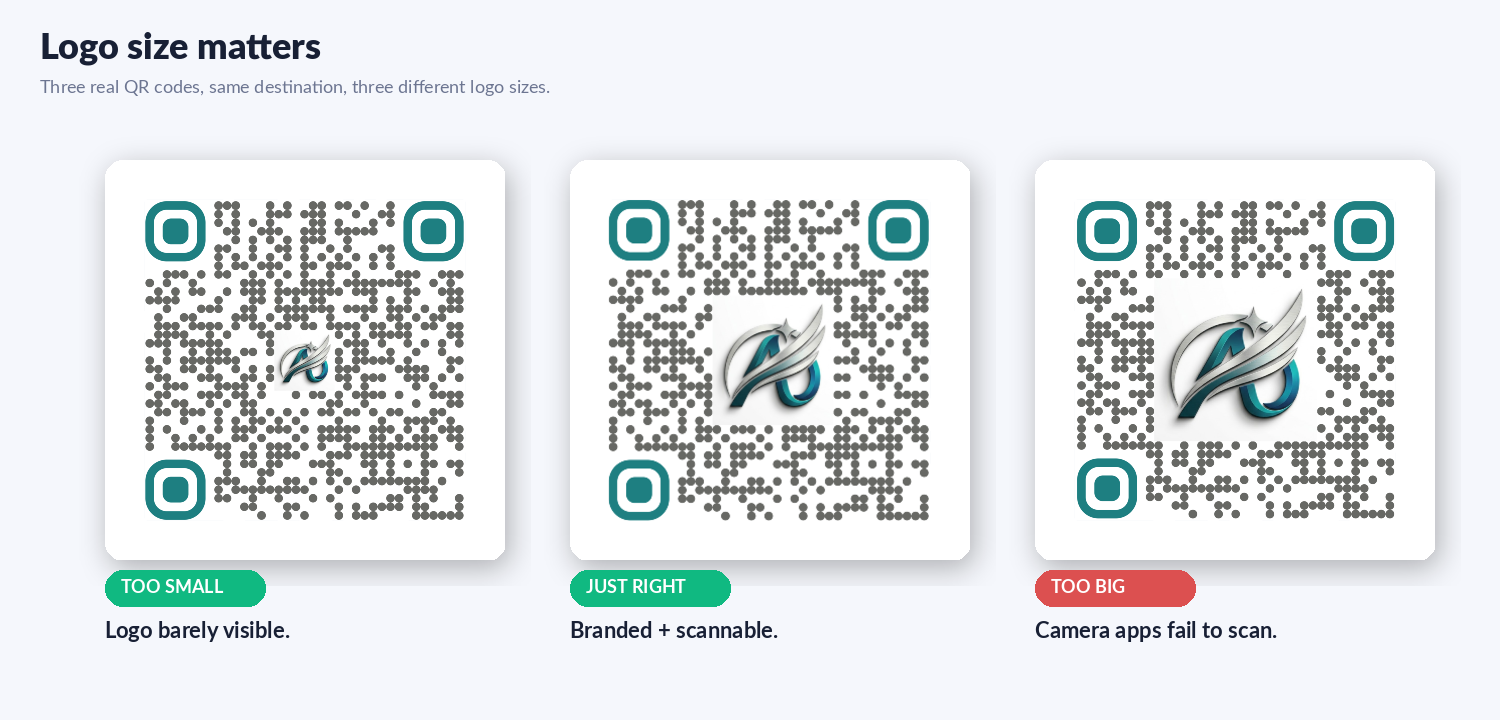
Concretely:
If you really need a bigger central element for design reasons, increase the QR code's overall size (more total modules) before resizing the logo proportionally. A bigger code can carry a bigger logo without exceeding the error-correction budget.
Quick reference:
If you're not sure what you have, drag your logo file into a tool like Preview (macOS) or Photos (Windows) and check the format. If it's a JPG, try opening it in a free tool like Photopea or remove.bg to convert it to a transparent PNG before uploading.
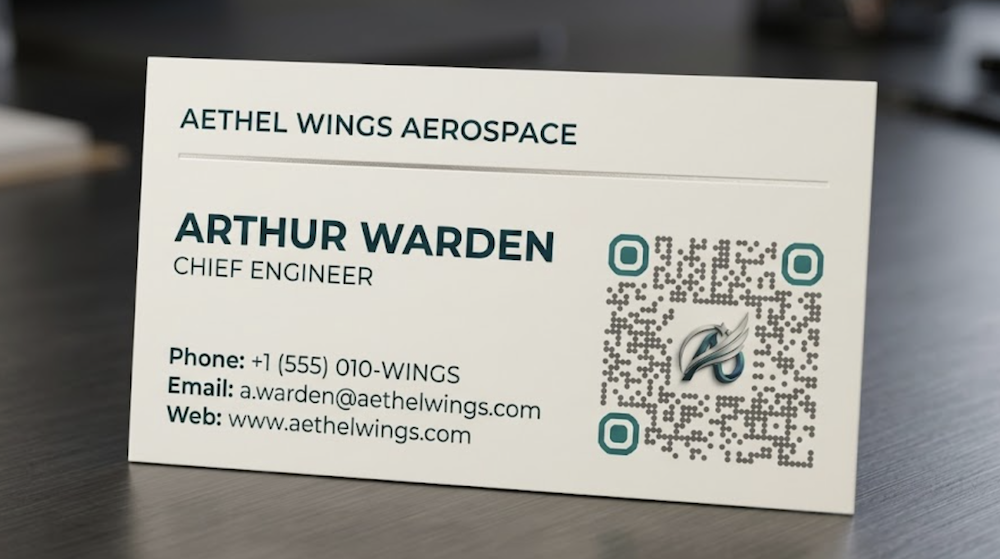
A few common cases where a branded QR code earns its keep:
On whew.cc the QR generator has two modes:
For a QR code with a logo specifically, both modes work identically - the logo is baked into the image regardless of which mode you pick. We have a deeper comparison in our piece on dynamic QR codes and analytics.
No sign-up needed. Free SVG and PNG export. Logo support and readability check included.
Want to dig into more QR territory? Read about dynamic QR codes and analytics, or compare your options in our free QR generator comparison.
Keep exploring QR codes and short links: