How to Track QR Codes in Google Analytics

How to Track QR Codes in Google Analytics: Complete 2026 Guide

You printed a QR code on a flyer, a table tent, a yard sign - or all three - and now you want to know whether anyone actually scanned it, and which placement worked best. This guide walks through the two practical ways to track QR code scans with Google Analytics (UTM parameters in your destination URL, and dynamic QR codes that count scans on the redirect), plus the GA4 reports that actually show you what's working.

You don't need a paid analytics tool to start. Google Analytics 4 (GA4) is free, and the most common QR-code tracking setup costs nothing to implement once you've added the GA4 tag to your destination site.

Looking for just the setup steps? Jump to the dedicated step-by-step GA4 setup guide - this article covers the broader why and what; that one covers the exact configuration with troubleshooting.

What Are QR Code Analytics?

QR code analytics let you see how your QR codes are performing. Think of it as a report card for your QR campaign. With dynamic QR codes (codes that can be edited after creation), you can track data like:

  • Number of Scans: How many people scanned your QR code.
  • Time of Scans: When your QR code was scanned.
  • Location of Scans: Where the scans happened.
  • Device Type: Whether users scanned with a smartphone, tablet, or other device.

This data helps you understand your audience better and make informed decisions for future campaigns.

Why Track QR Code Analytics?

Tracking QR code analytics isn’t just a nice-to-have; it’s essential. Here’s why:

  1. Measure Effectiveness: Want to know if your QR code campaign is worth the investment? Analytics tell you what’s working and what’s not.
  2. Optimize Campaigns: By analyzing the data, you can tweak your strategy for better results.
  3. Understand Your Audience: Learn when and where your audience engages most with your QR codes.
  4. Prove ROI: Show stakeholders or your team that your QR code campaigns are delivering value.

How to Track QR Codes in Google Analytics (Step by Step)

Google Analytics doesn't "see" a QR code directly - it sees the URL the QR code resolves to. So tracking QR scans is really about making each QR's destination URL distinguishable, then reading the right GA4 report. Here are the two patterns that actually work.

Method 1: UTM parameters on a static QR (free, works with GA4 today)

Best when you control the destination page and have a small number of QR placements you want to compare.

  1. Build a UTM-tagged URL. Use the UTM builder (or Google's Campaign URL Builder) and set utm_source, utm_medium, and utm_campaign for each placement. Example: https://yoursite.com/landing?utm_source=table-tent&utm_medium=qr&utm_campaign=summer-menu.
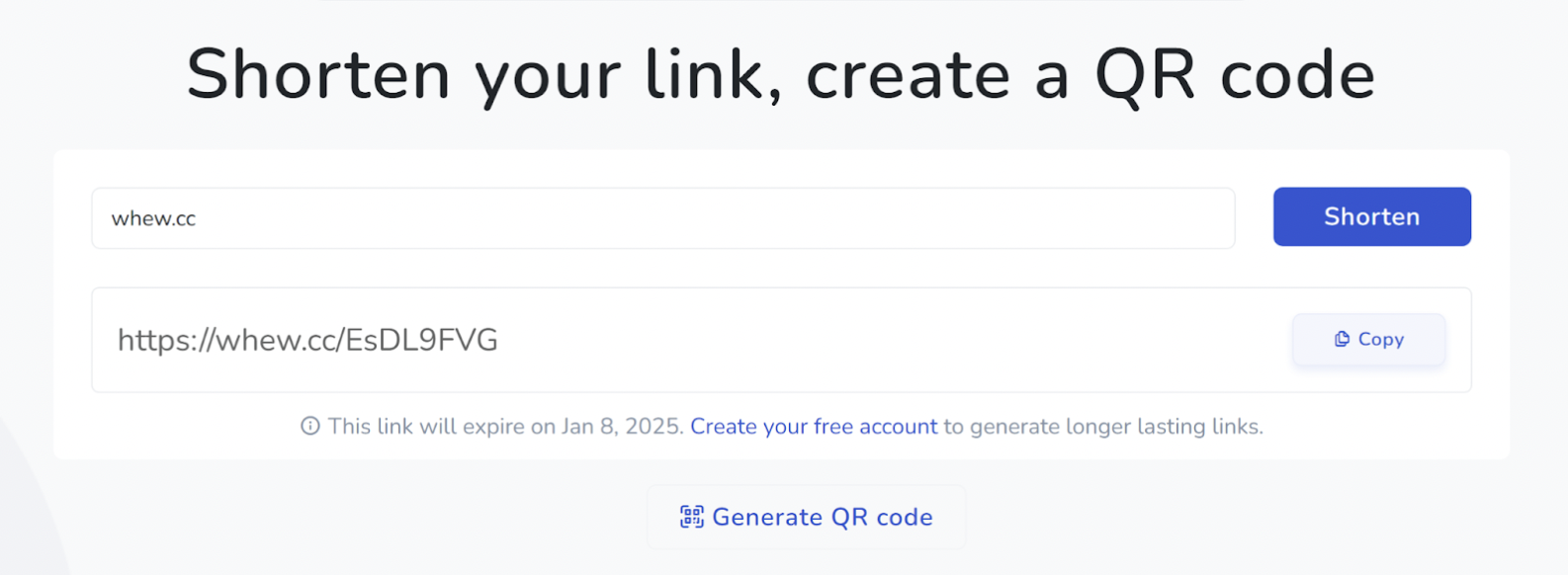
  2. Encode that URL as a QR. Any QR generator works for this step, including the free one at whew.cc. The QR can be static.
  3. Verify the GA4 tag is on the destination page. The gtag.js snippet for your GA4 property ID must be installed on every page the QR can land on, or scans won't be counted.
  4. Read the report. In GA4: Reports → Acquisition → Traffic acquisition. Filter the "Session source / medium" dimension by the exact source/medium you set on the URL. You'll see sessions, engaged sessions, and conversions for each unique QR.

Downside: a static QR's UTM tags are baked in. To change the source name later, you'd need to reprint.

Method 2: Dynamic QR + UTM (better for printed materials that live for months)

Best when you want both scan counting at the QR level and destination-side attribution in GA4.

  1. Generate a dynamic QR via whew.cc. The QR encodes a short whew.cc URL; you set the redirect destination separately. The redirect itself becomes a server-side scan counter that's independent of GA4.
  2. Make the destination URL UTM-tagged. Same pattern as Method 1 - utm_source, utm_medium, utm_campaign. The dynamic short link passes the UTM parameters through on redirect.
  3. Two layers of analytics for free. The dynamic-link dashboard tells you "how many scans, when, where roughly" (privacy-respecting aggregate data). GA4 tells you "what those scanners did on the destination site" (engaged sessions, page views, conversions). Together they answer the full lifecycle.

Bonus: with a dynamic QR you can change the destination URL after printing - useful when campaigns rotate or a typo'd link needs fixing.

Method 3: Built-in QR analytics tool (no GA4 required)

If you don't have GA4 installed on the destination site, a dynamic QR generator's own dashboard is the simplest path. whew.cc's dynamic-link analytics surface scans, devices, geographies, and time-of-day patterns in one view, with no setup beyond creating the link.

Setting Up GA4 to Track Dynamic QR Codes (the configuration details)

If you already have GA4 on the destination site, the only real configuration on the GA4 side is making sure your session source/medium reports cleanly separate the QR traffic from everything else. Three small habits prevent most attribution mistakes:

  • Always lowercase your UTM values. GA4 treats QR and qr as separate mediums. Pick one and stick to it (we recommend qr as the medium for all QR placements).
  • Use a campaign-naming convention. summer-menu-2026 beats Summer Menu because lowercase + hyphens never collide and never get truncated by analytics tools that strip spaces.
  • Mark a key event as a conversion. Admin → Events → toggle "Mark as conversion" on the action that proves the scan worked (form submit, signup, purchase). Once conversions are marked, the Acquisition reports automatically show conversion rate per source - which is the single most useful "is this QR working?" number.

What You Can Measure: Scans, Sources, Conversions

A complete QR analytics setup answers three categories of question:

  • Scan volume + timing. How many people scanned the QR, on which days, at which times of day. Comes from the dynamic QR's own dashboard (privacy-preserving aggregate counts) or from GA4's Acquisition report (sessions where the QR was the source).
  • Source attribution. Which physical QR placement (the table tent at Restaurant A vs. the printed sign at Restaurant B) drove the scan. Comes from UTM-tagged destination URLs read in GA4's Traffic acquisition report.
  • Behavior after the scan. Did they read the page, fill the form, sign up, buy something. Comes from GA4's Engagement and Conversions reports, filtered by the QR's source.

The first two answer "did the QR get seen?" The third answers "did it move the needle?" - which is what matters for justifying the print spend.

Common Mistakes to Avoid

  • No UTM parameters at all. The QR sends scans to a clean URL with no tracking. In GA4 they show up as "direct" traffic, mixed in with bookmarks and typed-in URLs. You can't tell which campaign worked.
  • Mixing case in UTM values. QR on Monday and qr on Friday creates two separate sources in GA4. Reports look like ghost-traffic from two different campaigns.
  • Forgetting the GA4 tag on the destination. If the destination is a third-party site (a Linktree, an event signup page) and you don't control the GA4 install, you can't read GA4 attribution. Use the dynamic-QR dashboard for those.
  • Static QR for a destination that might move. If there's any chance the destination URL changes, use a dynamic QR. Static QRs can't be edited after printing.

When Are QR Codes Most Effective?

QR codes are most effective when:

  • They’re Easy to Access: Place QR codes where people can easily scan them - on posters, menus, or even packaging.
  • They Offer Value: Give users a reason to scan, like exclusive discounts, event details, or helpful content.
  • They’re Targeted: Use analytics to identify where your audience is and tailor your QR code placement accordingly.
  • They’re Simple to Scan: Ensure the code is clear and not too small. Add a call-to-action like “Scan to Learn More.”

Why Choose Our QR Code Generator with Analytics?

Creating dynamic QR codes with built-in analytics is easy and effective with our platform. Here’s why you’ll love it:

  • Real-Time Tracking: See how your QR codes are performing at any moment.
  • Customizable Codes: Tailor your QR codes to match your brand.
  • Ease of Use: No technical expertise required - just generate, share, and track.
Ready to get started?

Try our QR Code Generator today

QR Generator

Frequently Asked Questions

Build a UTM-tagged destination URL using utm_source, utm_medium, and utm_campaign parameters; encode that URL as a QR code; and make sure the destination page has the GA4 tag installed. In GA4, open Reports - Acquisition - Traffic acquisition and filter Session source / medium by the values you used in the URL. Each unique QR placement will show as its own row.

Yes - Google Analytics 4 (GA4) tracks the page visit that follows a QR scan, attributed by the UTM parameters in the destination URL. GA4 doesn't see the scan itself; it sees the resulting session on your site. For server-side scan counting that works even when GA4 isn't installed, pair a dynamic QR generator's own dashboard with GA4.

Three steps: (1) Install the GA4 tag on every destination page the QR can land on. (2) Build each QR's destination URL with consistent UTM parameters (lowercase, hyphens). (3) In GA4 Admin, mark the post-scan action you care about (form submit, signup, purchase) as a conversion via Admin - Events - Mark as conversion. The Traffic acquisition report will then show conversion rate per QR source.

Built-in dynamic-QR dashboards count scans on the redirect itself, which works even if the destination is a third-party site you don't control. GA4 measures behavior after the scan - engaged sessions, page views, conversions - but only on sites where the GA4 tag is installed. For the full picture, use both: the QR dashboard for scan volume, GA4 for what happens next.

No - a static QR with UTM parameters baked into the destination URL will work for GA4 tracking. Dynamic QRs add two benefits: you can change the destination URL after printing, and you get scan-level analytics from the QR generator itself (independent of GA4). For one-off campaigns, static is fine. For printed materials that live for months, dynamic is worth the small extra setup.

Yes, this is the most common QR analytics use case. Give every printed surface (flyer, table tent, billboard, business card) its own unique utm_source value. In GA4 Traffic acquisition reports, each one becomes a distinct row so you can compare which printed placement drove the most sessions and conversions.

UTM parameters are tags added to a URL (like ?utm_source=table-tent&utm_medium=qr&utm_campaign=summer-menu) that tell Google Analytics where a click came from. For QR codes, the convention is utm_medium=qr, utm_source=the specific physical placement, and utm_campaign=the marketing campaign name. Build them in 30 seconds using the UTM builder.

Static QR codes encode the destination URL directly - they're permanent but can't be edited. Dynamic QR codes encode a short link that you control; the destination can be changed anytime without reprinting. For analytics, dynamic codes also give you scan-level data from the QR generator's own dashboard, on top of whatever GA4 captures at the destination.

Use a dynamic QR code generator with a built-in analytics dashboard. Dynamic QRs route scans through a redirect server that counts each scan and records aggregate device, geography, and timing data. You don't need GA4 or any tag installed on the destination site - the analytics come from the QR generator itself.

Tracking QR code analytics doesn’t have to be complicated. With the right tools and strategies, you can gain valuable insights and elevate your marketing game. Ready to see the difference? Generate your dynamic QR code with analytics now and take the guesswork out of your campaigns.

Related articles

Keep exploring QR codes and short links: